Responsive - Theater - Agenda Theater Color Guide
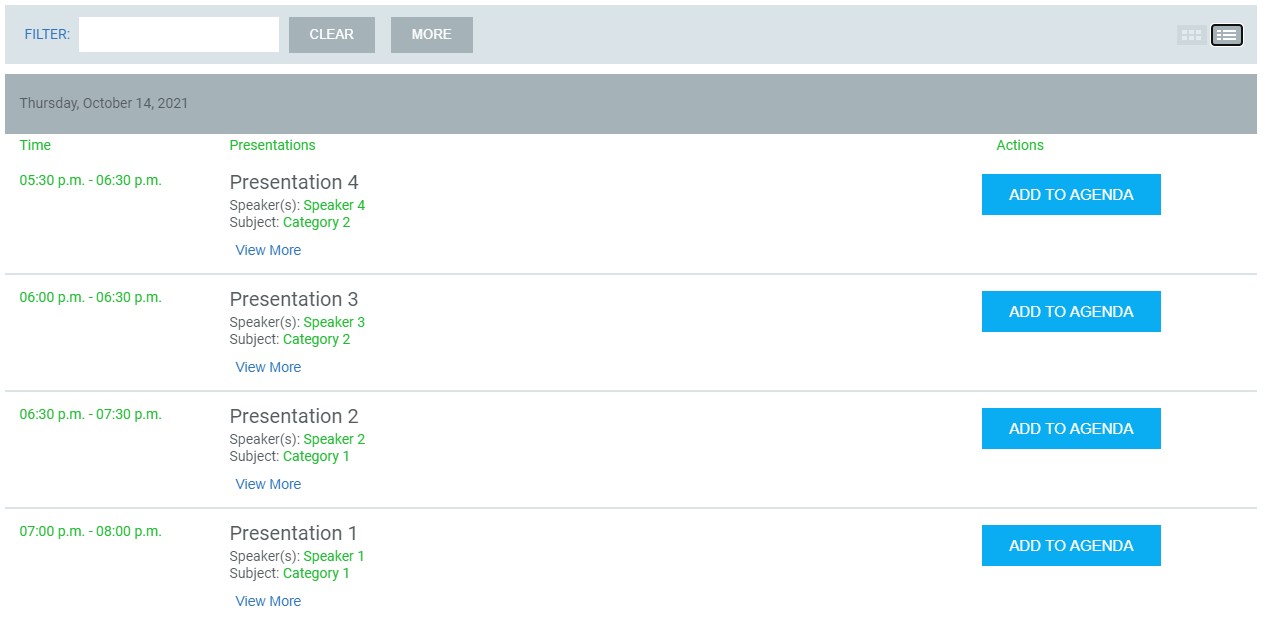
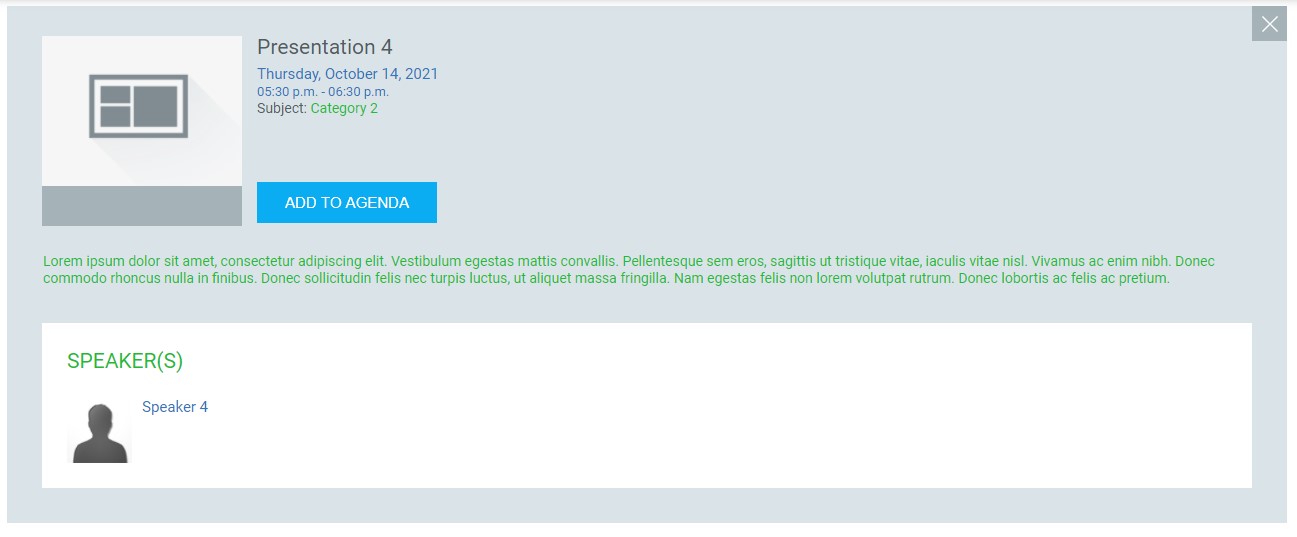
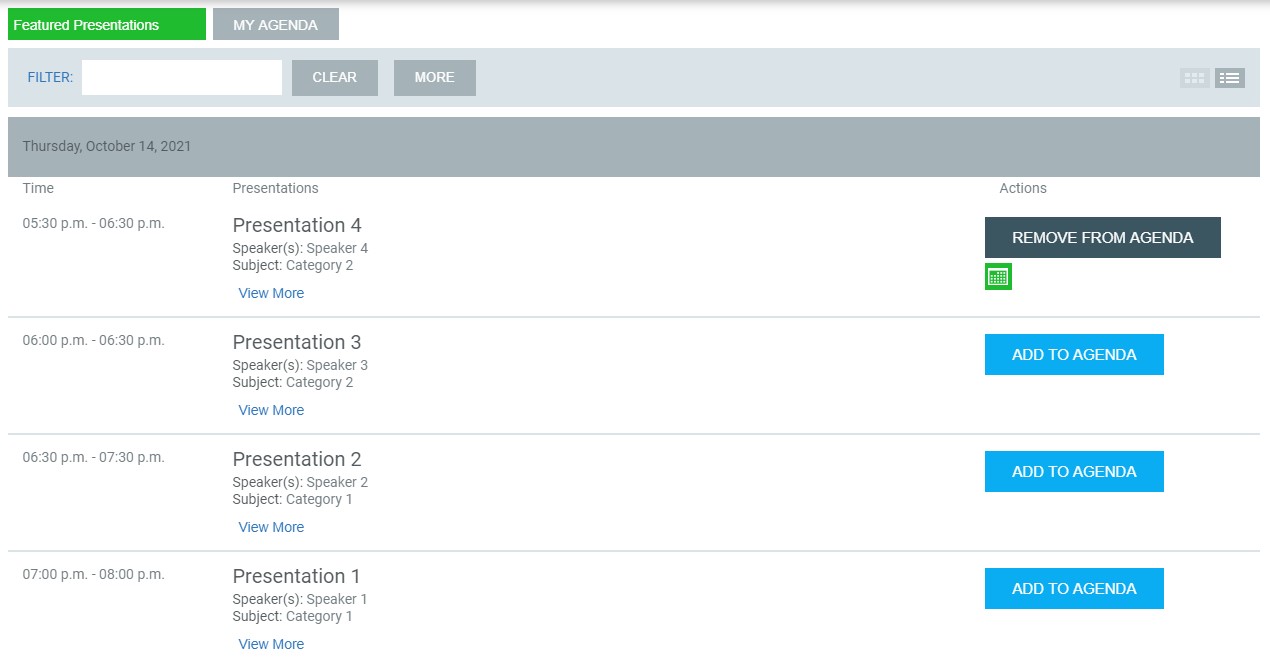
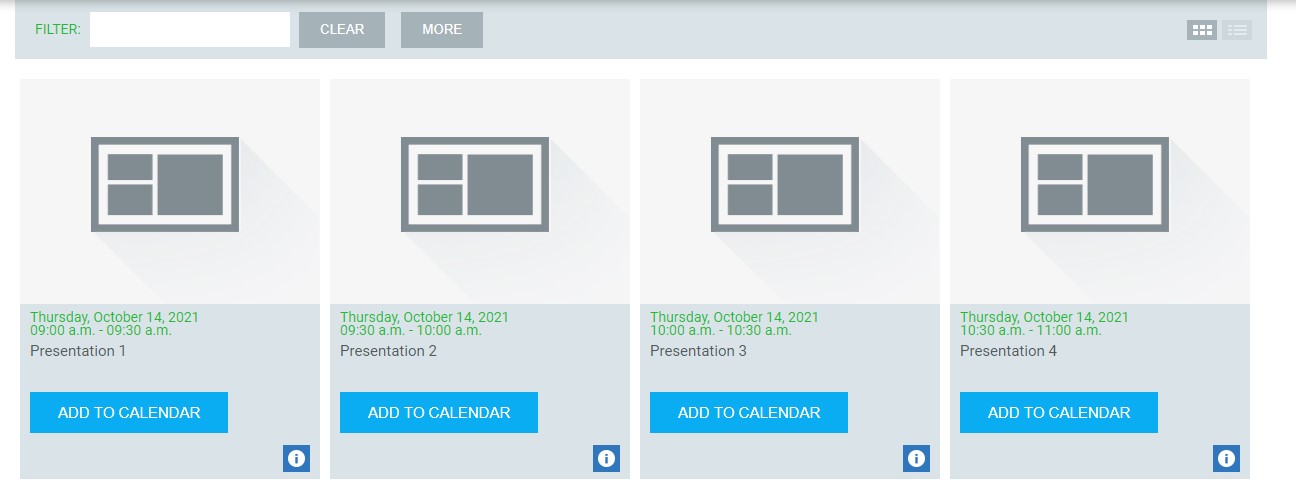
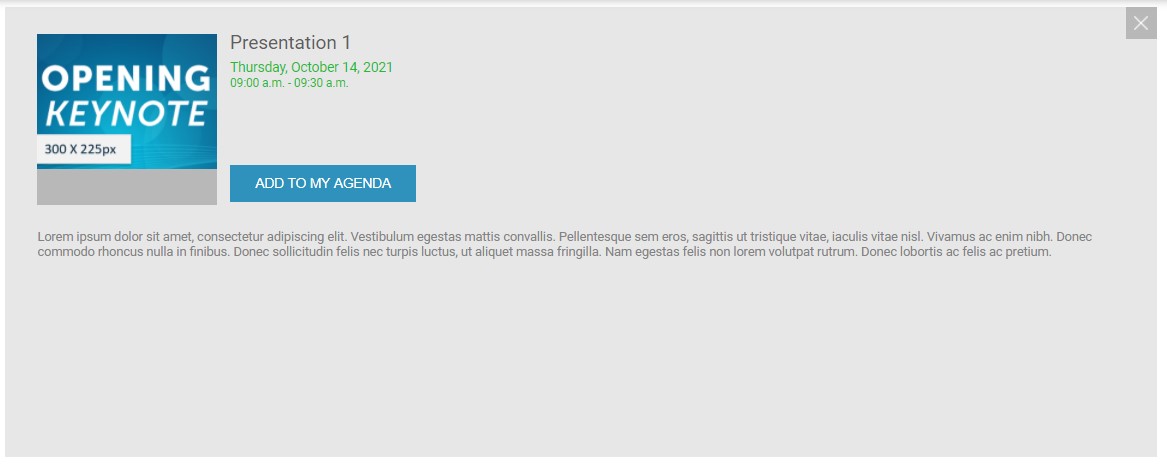
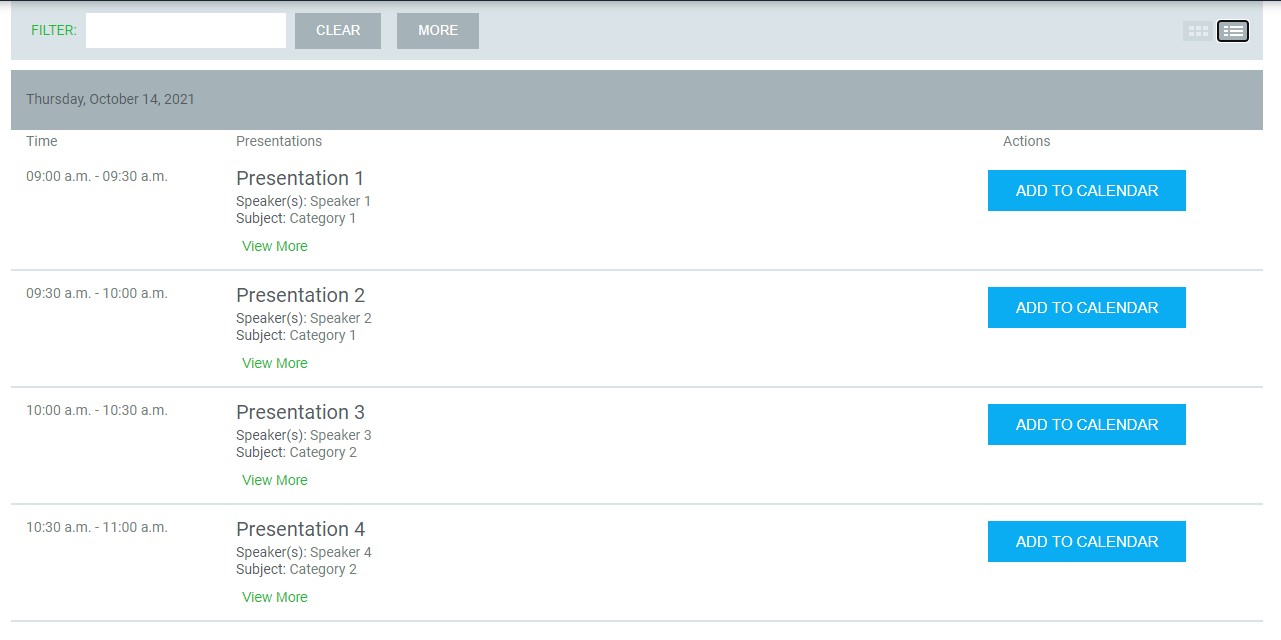
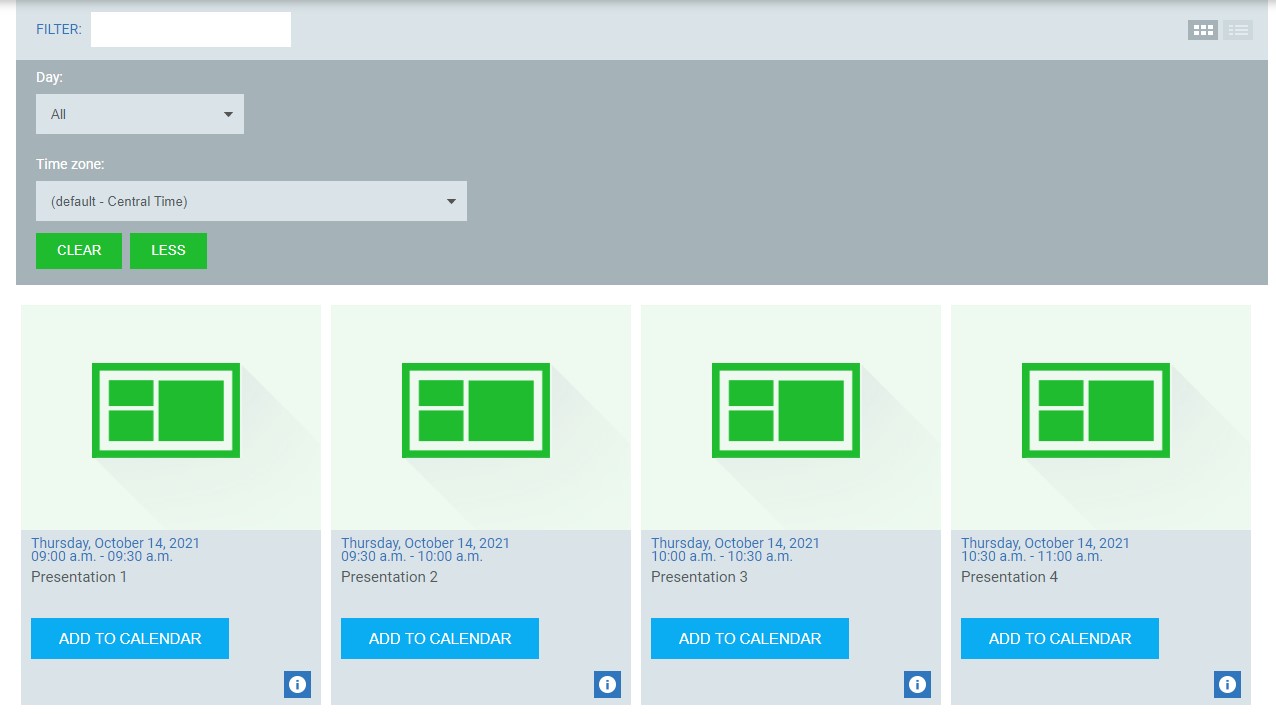
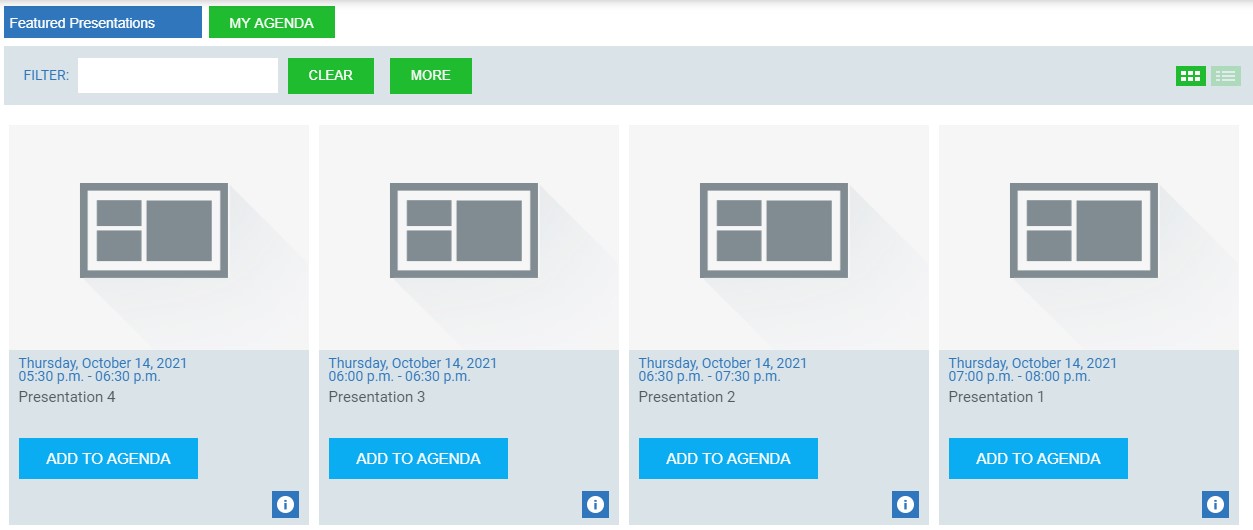
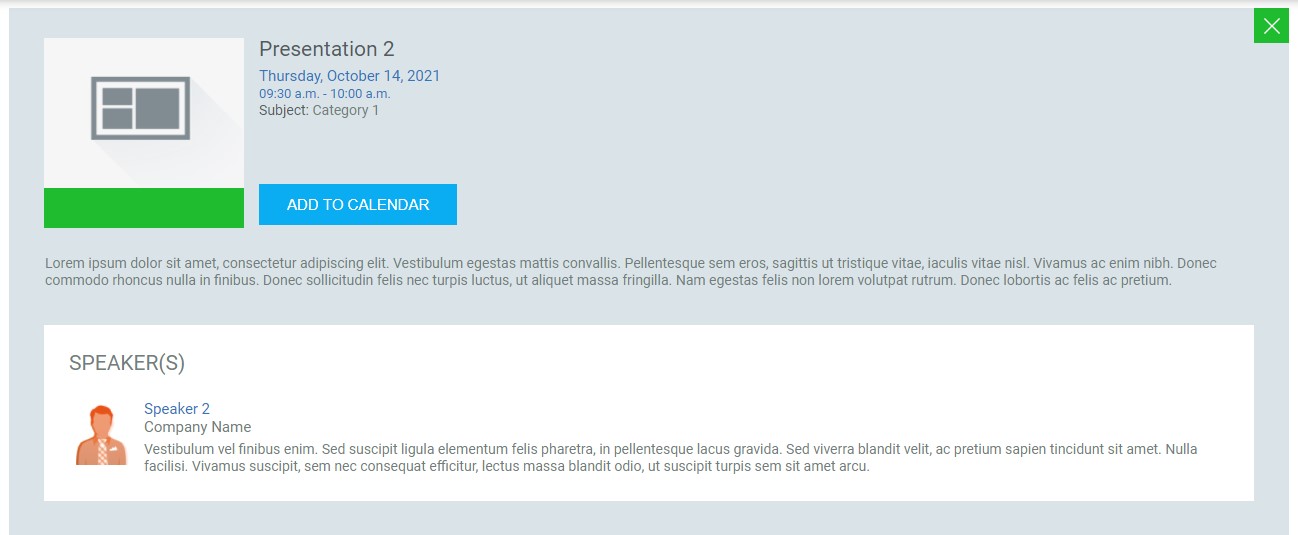
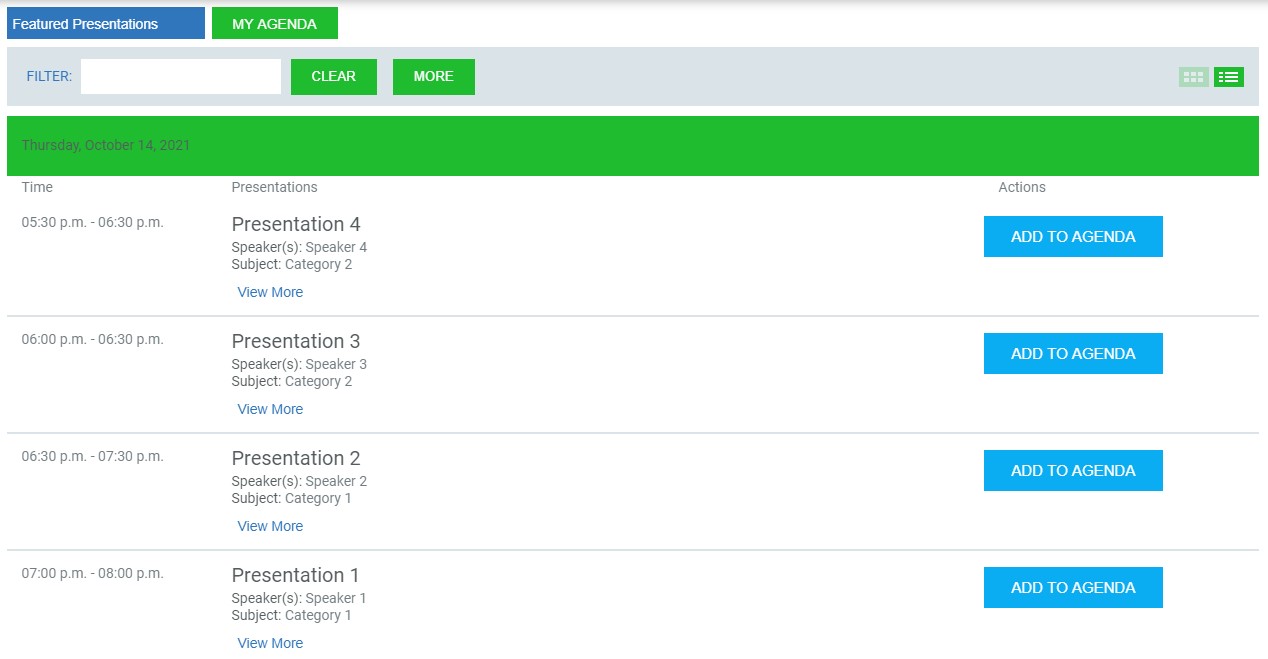
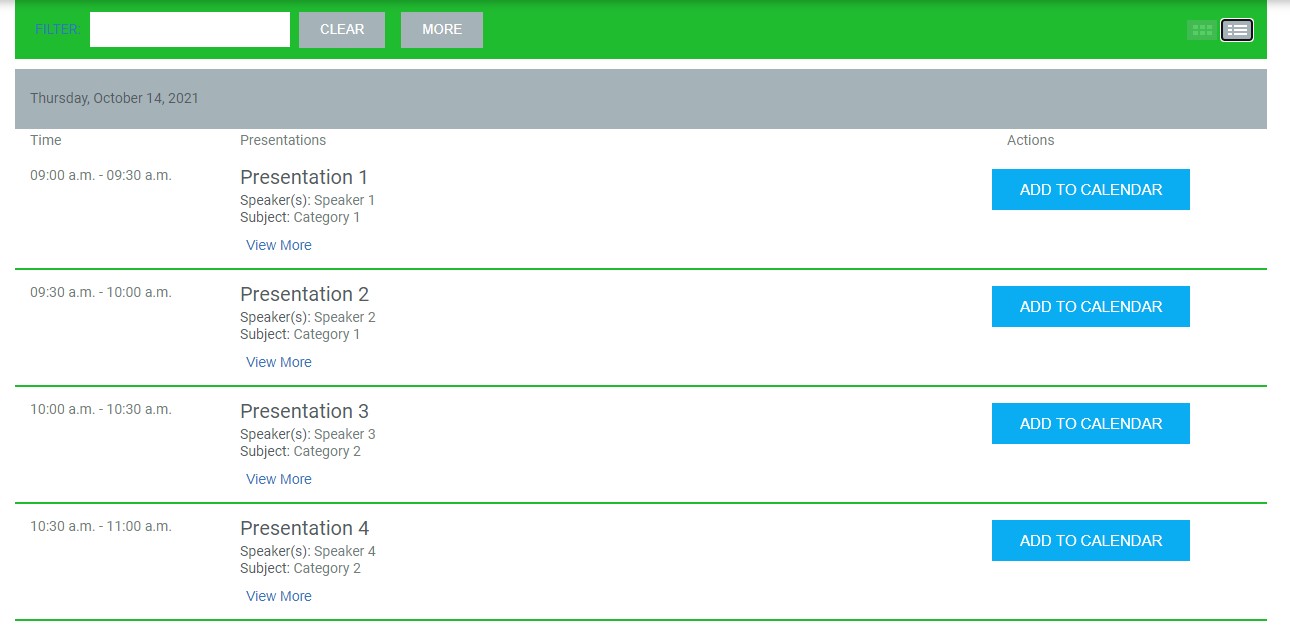
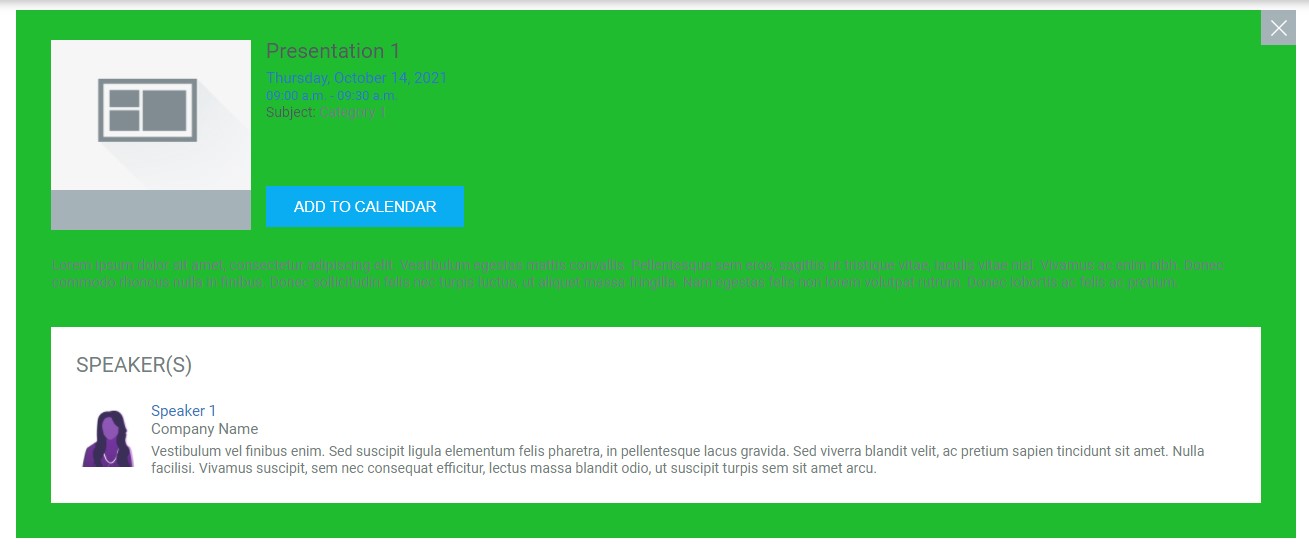
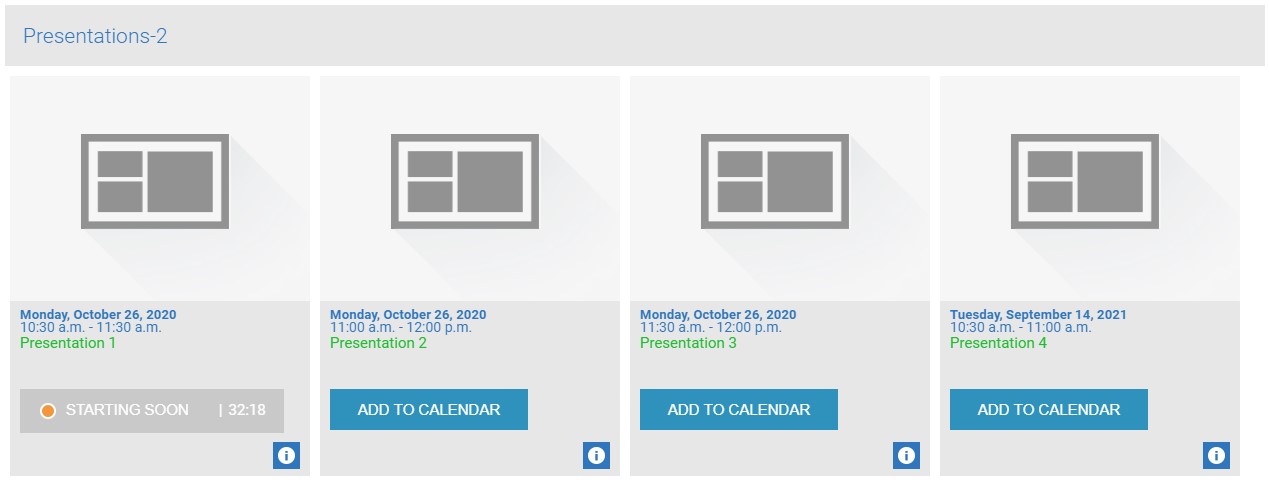
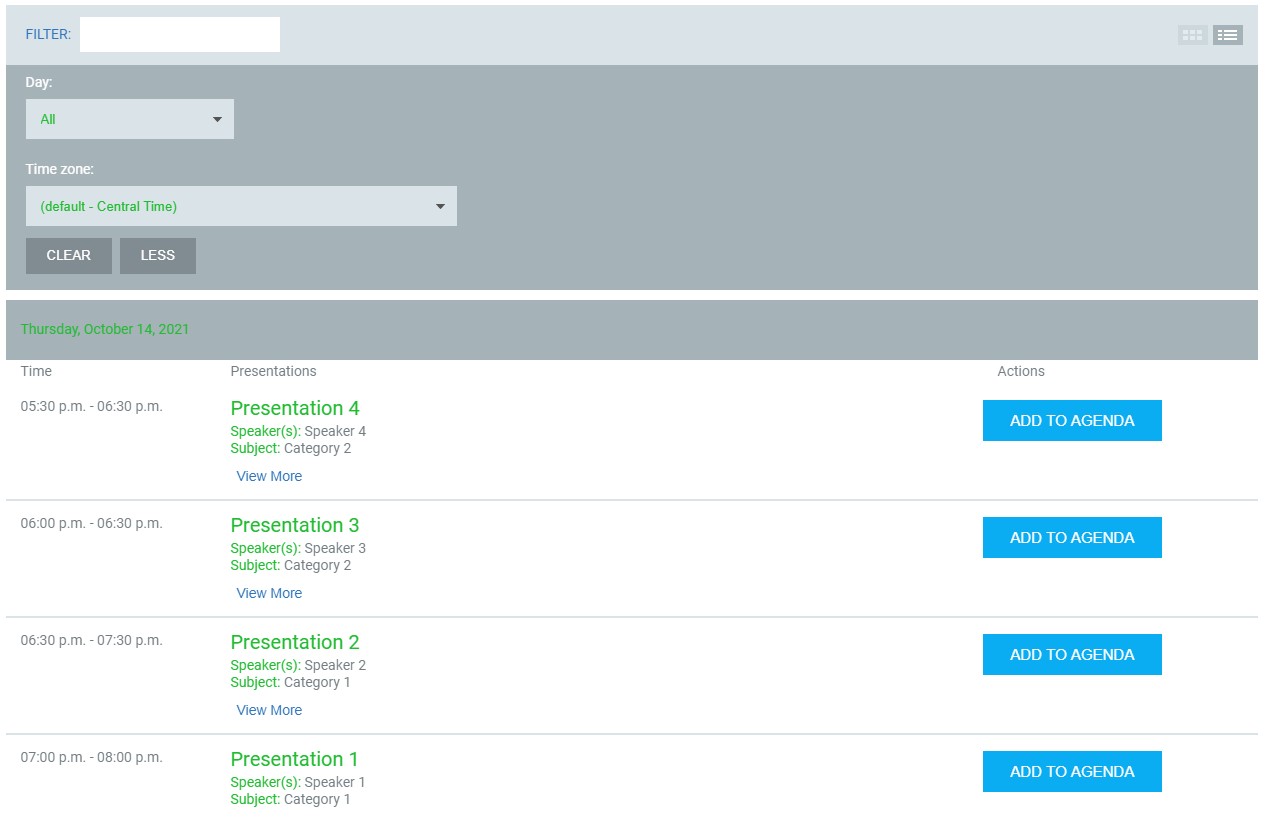
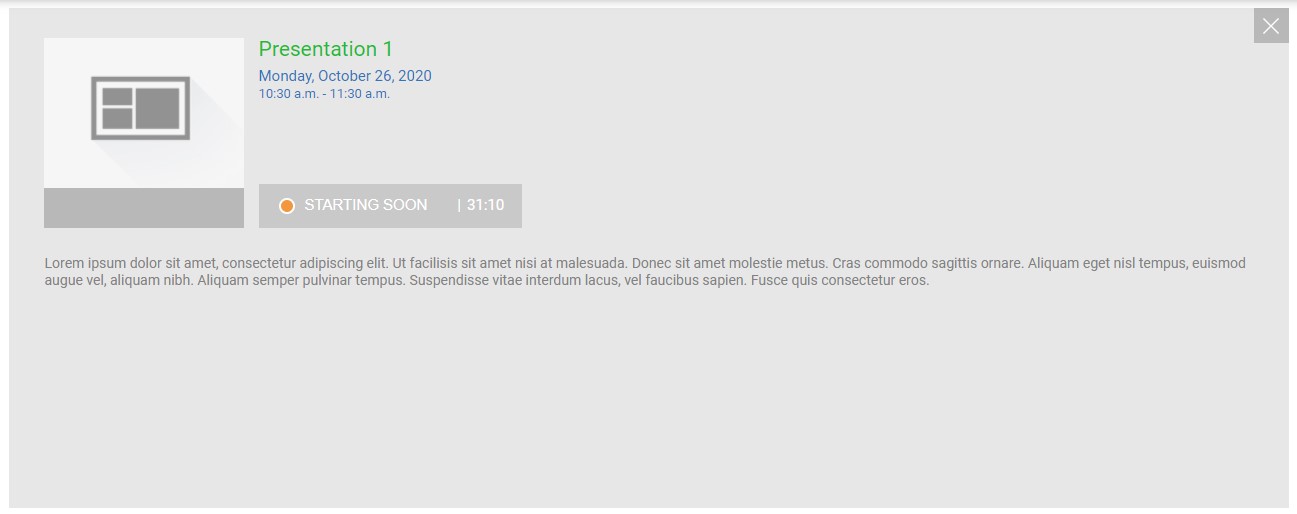
Page color options are highlighted in green in the below images for reference.
Primary Color
- The selected tab background color.
- The font color is hardcoded to white.
- The background color of the Add To Calendar icon on the presentation grid view, list view and View More page.
- The background color of the View More Information icon in the presentation grid view.
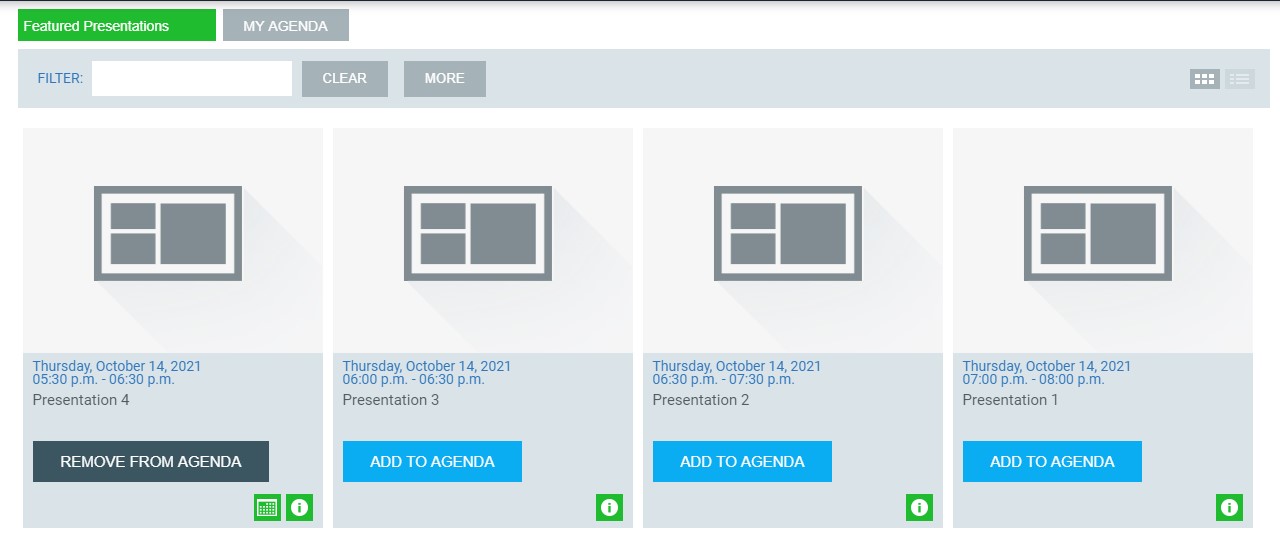
Primary Text Color
- Column title text when Display Title is selected.
- Presentation date & time in the presentation grid view as well as in the View More screen.
- The words View More in the presentation list view.
- The word Filter on the filter.
Secondary Color
- The presentation thumbnail background color in the presentation grid view and on the View More screen
- The "Clear" and "Less" buttons under the filter
Tertiary Color
- The unselected tab background color
- The "Clear" and "More" buttons on the filter bar
- The buttons to switch between the grid view and list view on the page
- On the "View More" screen, the social media share area as well as the "View More" close icon in the top-right corner
- The date bar on the presentation list view
1st Accent Color
- No updates.
2nd Accent Color
- The filter bar background color
- The background color of the presentation grid view area
- The presentation separation line on the presentation list view
- The view more background page color
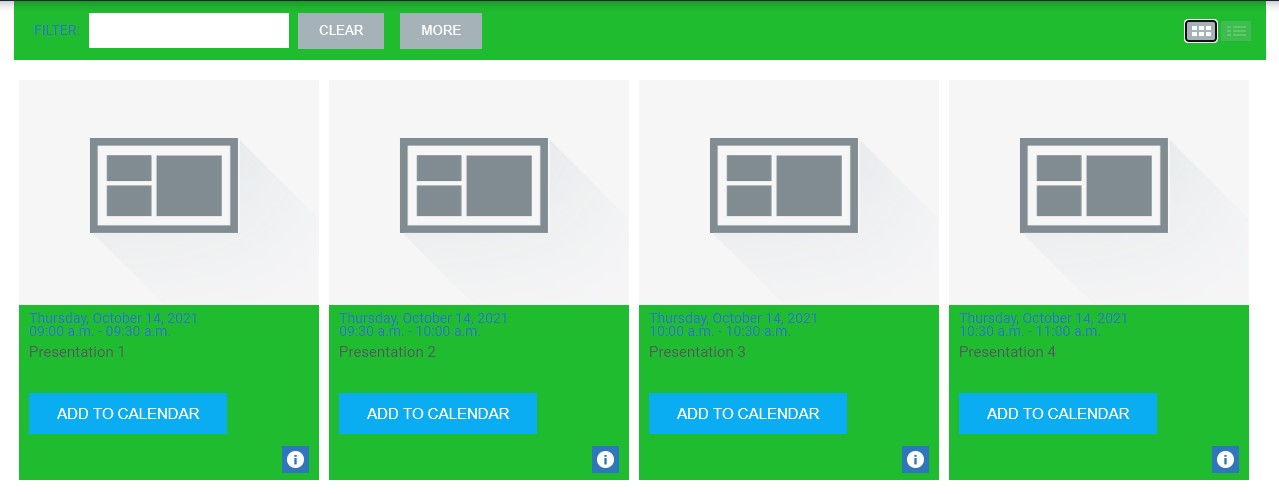
Add Agenda
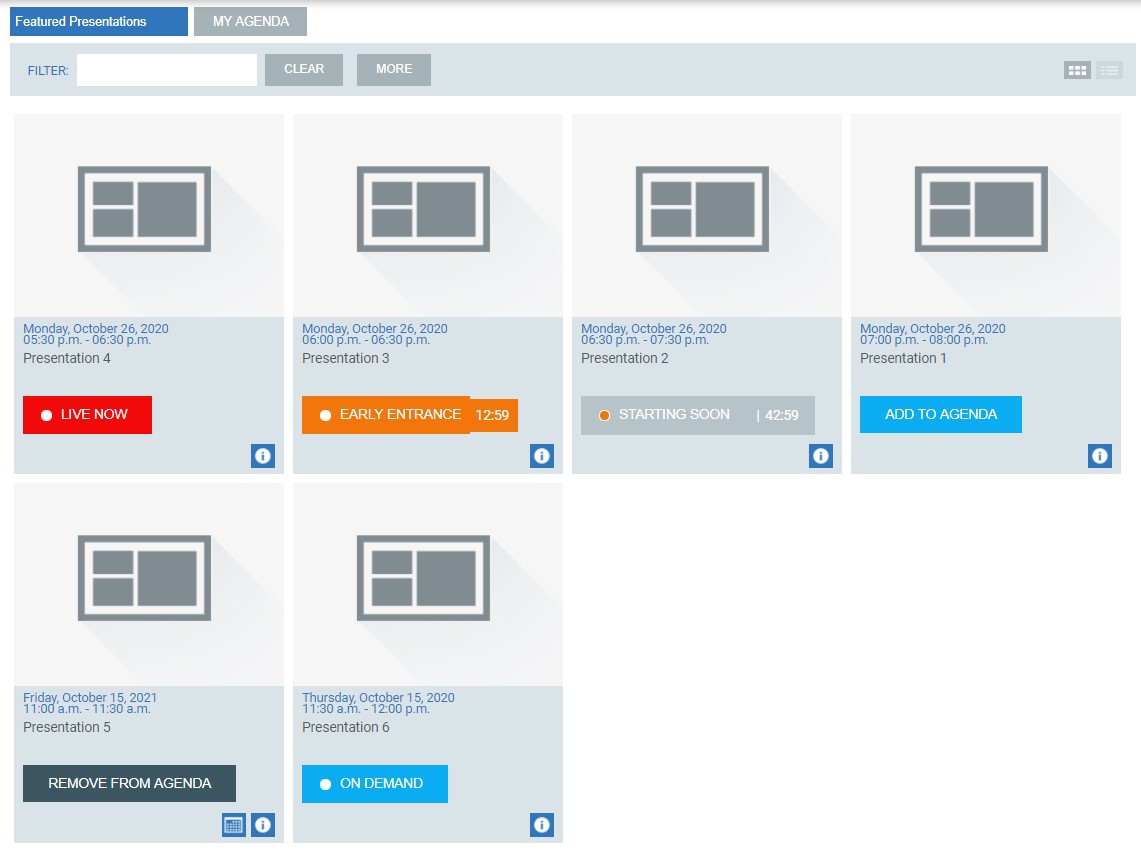
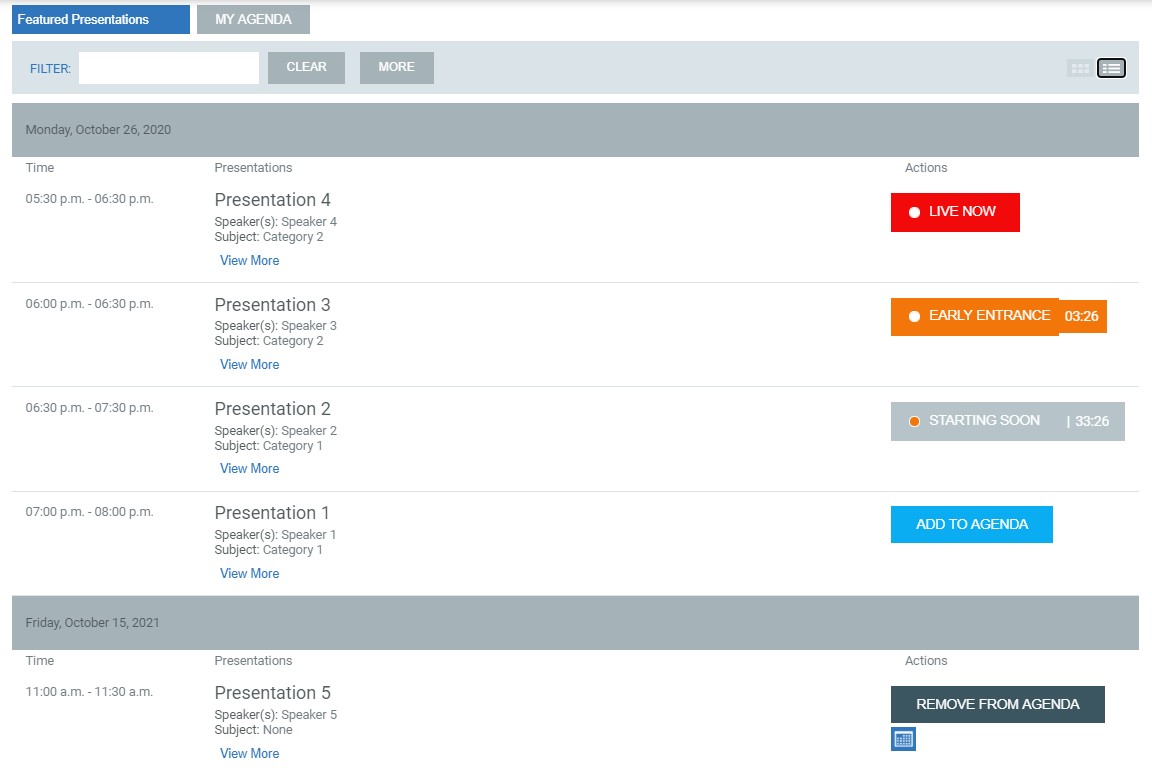
- The Add To Calendar button color (bright blue in the below image)
- The On Demand button color (bright blue in the below image)
Remove Agenda
- The Remove From Agenda
- button color (dark gray in the below image)
Starting Soon
- The button background color once the early entrance minutes start (orange in the below image))
- Within 60 minutes of the presentation start time and prior to the early entrance minutes, the default No Action Color with a (orange) dot indicator
Live Now
- Appears once the presentation Start Date/Time begins
No Action Color
- The button color for presentations starting in the next 60 minutes before the early entrance minutes begin
1st Text Color
- The presentation title text color
- The presentation date text color in the presentation list view
- The presentation speaker and subject category labels in the presentation list view
- The filter text color in the filter display
- The category label on the "View More" page
2nd Text Color
- The presentation time display color on the presentation list view
- The "Presentation" and "Action" column labels on the presentation list view
- The speaker and category display on the presentation list view
- The "Speaker(s)" lable, abstract and subject category display on the "View More" page